HOW TO: Export/Import Your Address Book Contacts
Follow these steps to safely migrate your contacts from the old system to the new system:
- Login to your old Rice Belt webmail (Atmail) webmail.www.ricebelt.net/mail before April 1st
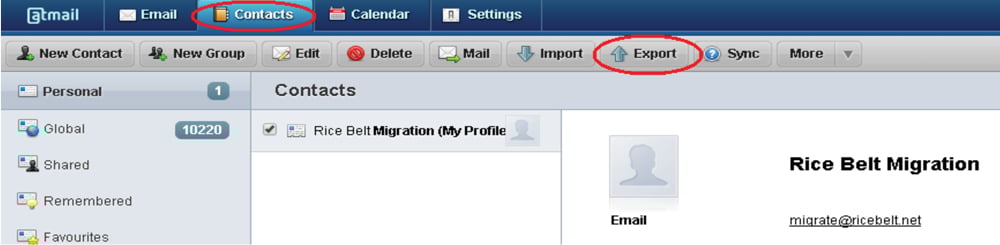
- Click “Contacts” and then “Export”. When exporting, note where on your computer you export your contacts to. You will need this file for importing.

- When available (after 5:00 am April 1), log in to the new Rice Belt Webmail by clicking here mail.www.ricebelt.net (be sure to have your email and password available). There are technically two webmail log-in options, for this process, you must use Tuxedo.
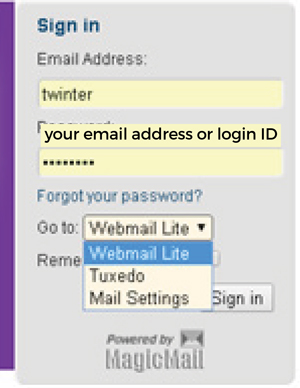
- Click on “Address Book”.
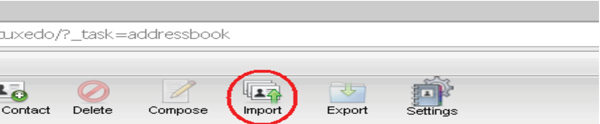
- Click on “Import”.
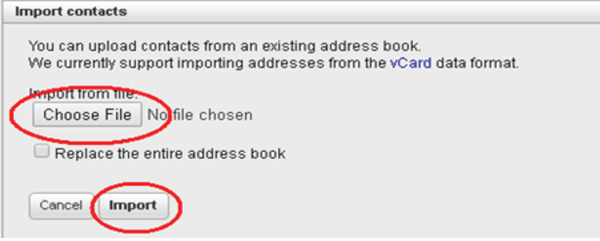
- Click “Choose File”. When the dialog window opens, you must navigate to where you exported your contacts to on your computer. Once you locate the file, select it and click “Open”. After you have selected the file to import, click “Import”.
- You’re good to go!